
TV Set-Up For Hifyre Digital Content
Store Manager Reference
This guide will walk you through everything you need to get set up — from connecting the hardware to getting your browser ready to go. It should only take a few minutes, and we're here to support you every step of the way.
2 Browser Shortcut Setup + Launch Screens
1 Hardware Setup
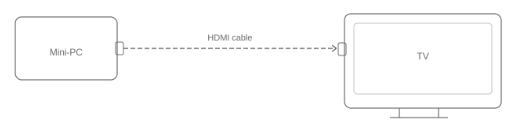
Connect the HDMI cable from the mini-PC to the TV.
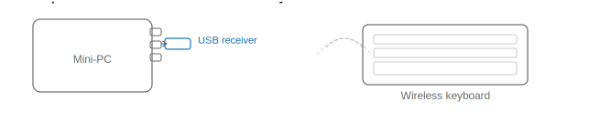
Insert the USB receiver for the wireless keyboard into the mini-PC. Turn on the keyboard.
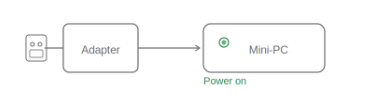
Plug in the power adapter to turn on the device.
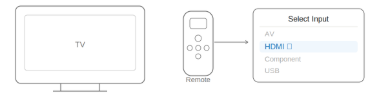
On the TV, switch the input/source to HDMI.
Log in to the mini-PC, navigate to Chrome and type in the Hifyre URL to your screen.

2 Browser Shortcut Setup + Launch Screens
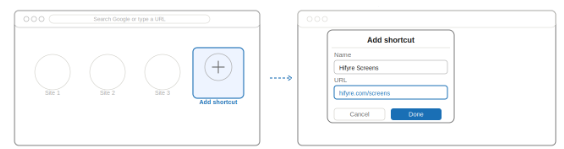
Open a new Chrome browser tab. Under the search bar, click
Add Shortcut.
Input the URL specific for your screen(s) and hit save.
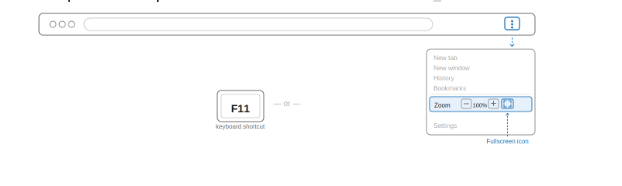
Enter full screen by opening the menu (three dots in the top right corner) and selecting
Full Screen(icon to the right of Zoom setting), or press F11 on the keyboard. The digital screen will now take up the full viewport of the TV with the browser bar hidden.
3 Troubleshooting
If you run into any issues with your digital screen, try the steps below before escalating.
Screen freezes Close the tab and re-launch the Hifyre URL on a new tab. This refreshes the connection and should resolve most freezing issues.
Old content still showing Close the tab and re-launch on a new tab. The screen will reload the latest content from the Hifyre platform.
Only the logo is appearing on screen Navigate to the Digital Displays module on your Hifyre Dashboard, select the screen, and confirm what content is set to play. The logo will display by default if the selected template returns zero products that match the current filters — review your template settings to ensure products are being returned correctly.
Screen is not turning on Check the HDMI cable connection and/or the power cord for both the TV and the mini-PC.
If after following the troubleshooting steps you still have an issue, please send a detailed email to help@hifyre.com that contains the following:
Banner + Store Name
TV url and TV location
Issue
Steps already taken to troubleshoot the issue