
Technology isn’t 100% and there is the possibility that payments don’t fully get processed. In this case, we refer to them as stuck authorizations or orphaned authorizations.
You are able to manually process the payment in Merrco. These are the steps to follow:
Confirm Authorization is Stuck/Orphaned
In Merrco reports select the summary tab. Enter the date range you are looking for - current month is generally useful.
Look for Authorizations in an Authorized status:

Click on the blue Authorized link. It will then give you the breakdown between FaF and FS accounts:

Click on the account the order would have been processed through (FaF stores → Fire & Flower; FS & HD stores → Friendly Stranger - Danforth).
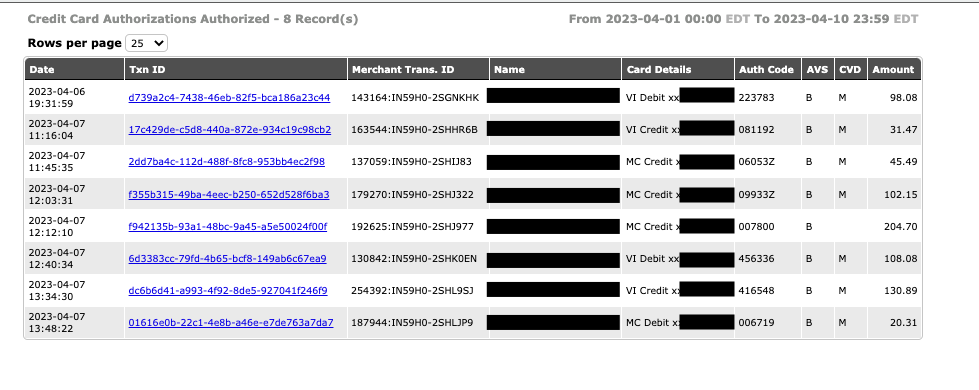
Click on the Txn ID link for the order you are verifying. You will be returned a screen such as this:
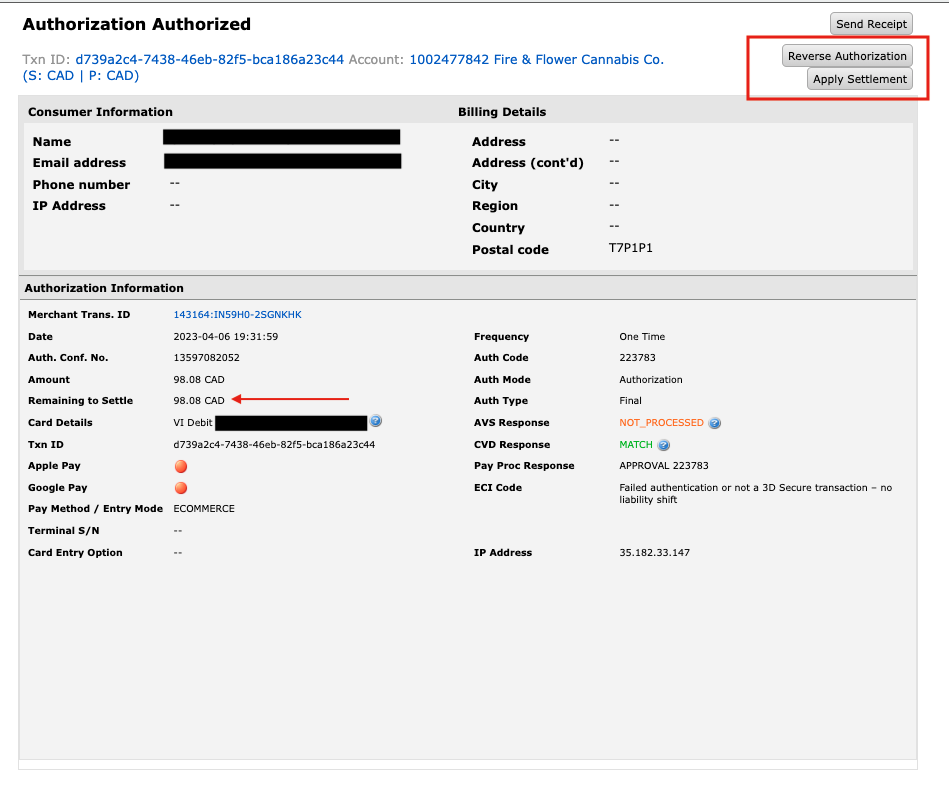
Apply Appropriate Action
There are 2 actions that can be taken at this point:
-
Reverse Authorization
-
Apply Settlement
Which action to take will be based on what has transpired in store.
-
Store waiting for confirmation of payment.
-
Apply Settlement and instruct the store to tender the order as Online Payment.
-
-
Store already completed the order.
-
Look in Cova hub to verify what payment form they tendered the order as:
-
If Online payment, then Apply Settlement.
-
If not Online payment, then Reverse Authorization.
-
-
Examples of #2 above:
Apply Settlement

The store settled the order on Apr 6 as an Online payment so in this case we want to Apply Settlement.
Remember to copy the merchant trans id prior to clicking on Apply Settlement as you will need to enter this in the pop up.
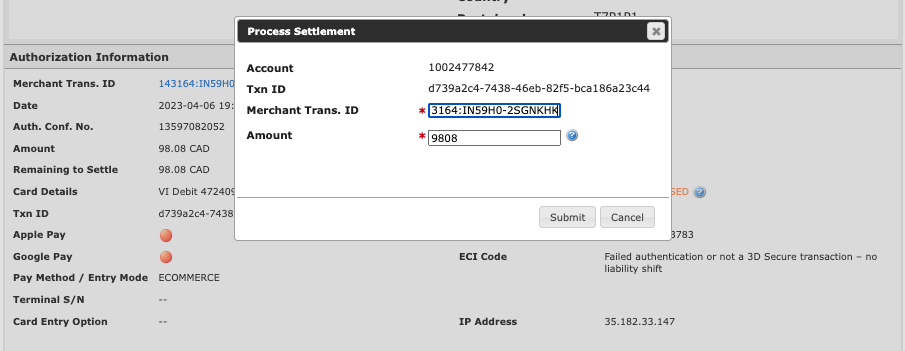
Once you enter the Merchant Trans ID click on Submit. You will then see it as a pending settlement at the bottom of the screen

When you now view the list of Authorizations that are in Authorized status this order will have been removed from the list.
Reverse Authorization

The store completed the order by taking a credit card payment in-store at the time the customer picked up. Note it says “MasterCard” and not “Online Payment”.
Remember to copy the merchant trans id prior to clicking on Apply Settlement as you will need to enter this in the pop up.
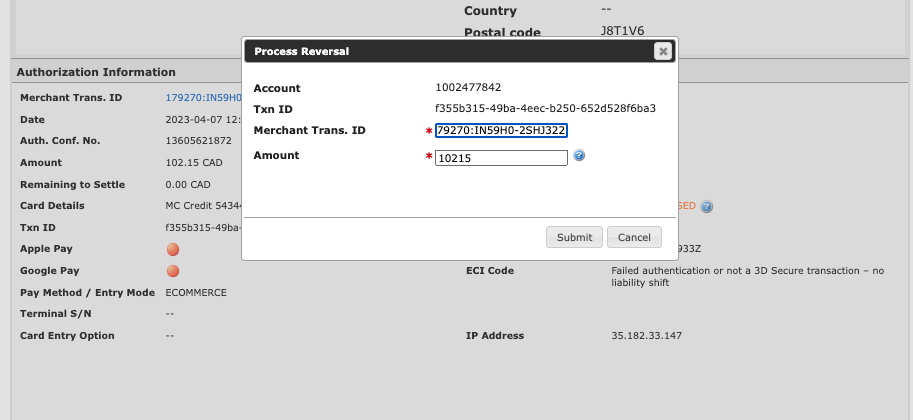
Once you enter the Merchant Trans ID click on Submit. You will then see the Remaining to Settle amount change to zero.
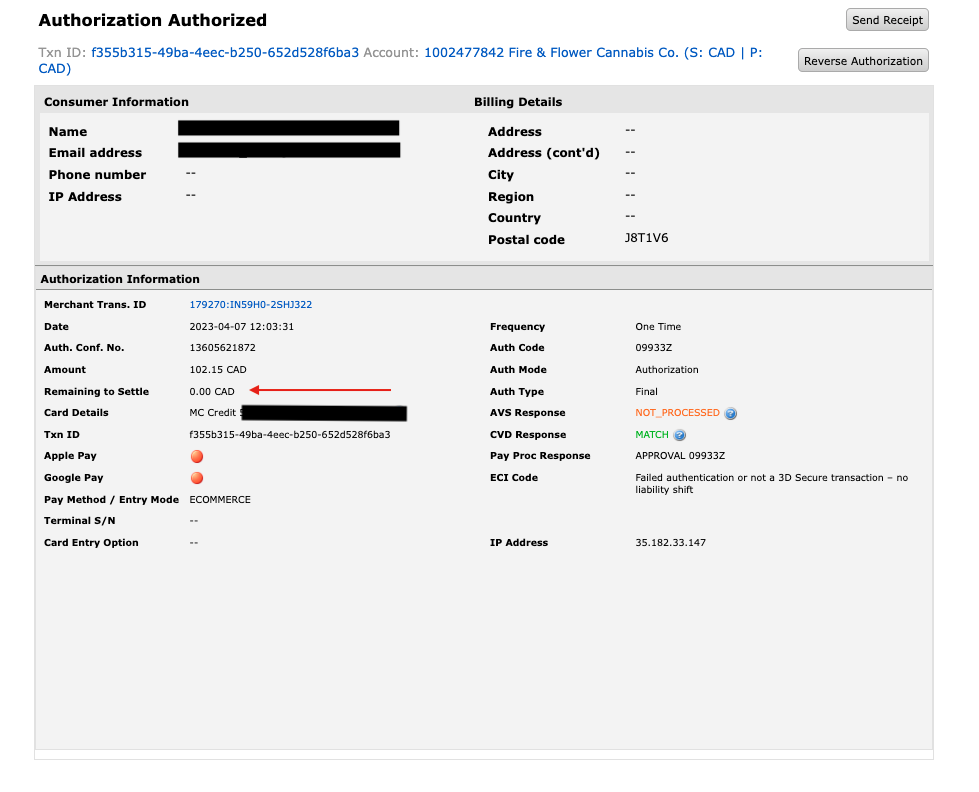
When you now view the list of Authorizations that are in Authorized status this order will still show in the list. Unfortunately Merrco leaves these here and thus you will have to keep track of the ones already viewed.