Filters & Columns
The filters section can be collapsed to show all filter field selections made from the left-hand side fields options. Each individual filter criteria must be set before running for it to be applied. Some filters have multiple selection options
Duplicating Filters
To duplicate a filter, the ‘+’ sign can be selected to add additional criteria
Removing Filters
To remove an individual filter, the ‘X’ can be selected from the filters dropdown section. When looking to reset entirely, there are two options:
-
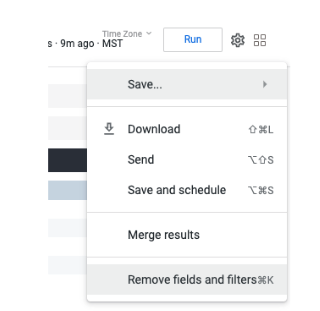
Using the top right-hand corner cogwheel you can select ‘Remove fields and filters’.
-
Clear All vs Clear Fields, Keep Filters
From the ‘In Use’ tab on the left-hand side, you can select the following options:-
Clear All - This will remove fields from both your report columns and from the filters
-
Clear Fields, Keep Filters - This maintains the fields chosen as filters, however removes them all from the report columns

-
Removing Individual Columns
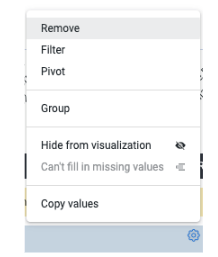
To remove an individual column, click on the cogwheel to the right of that column name and select ‘Remove’
Once all is complete, using the top right-hand corner blue ‘Run’ button selection, you can run your report to apply the fields pulled in or to update any changes.